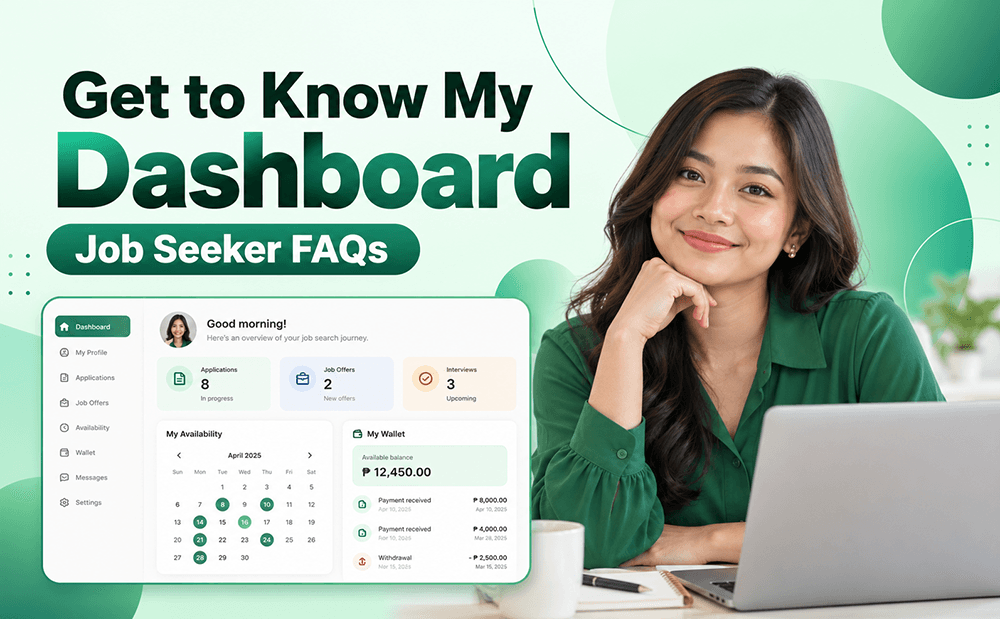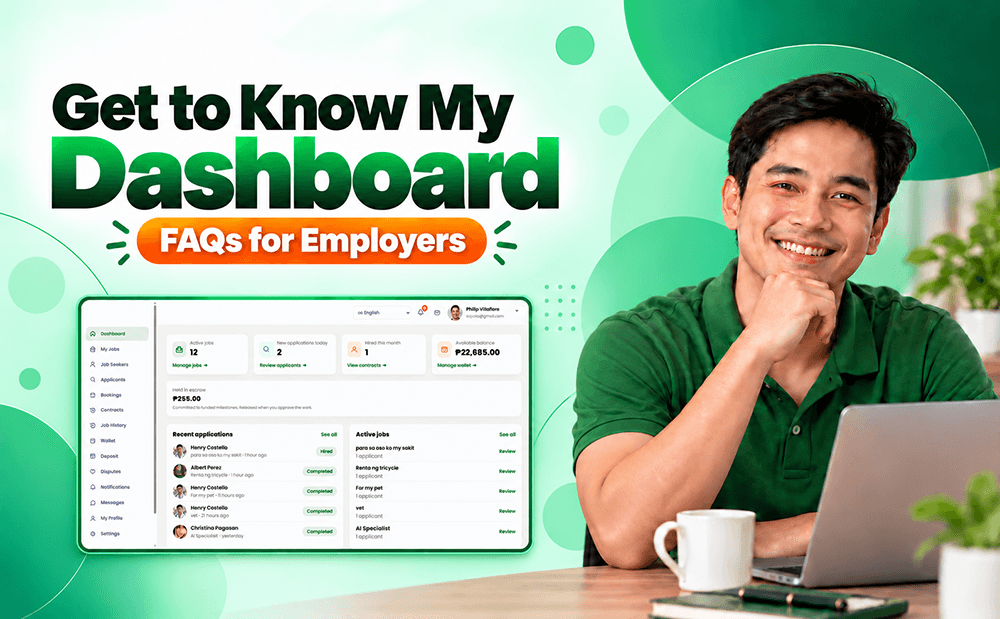
Get familiar with your Service Deel Dashboard and learn how to manage your account, post jobs, hire Job Seekers, make bookings, manage payments, and more. This simple guide will help you understand and use the features of your Dashboard easily.
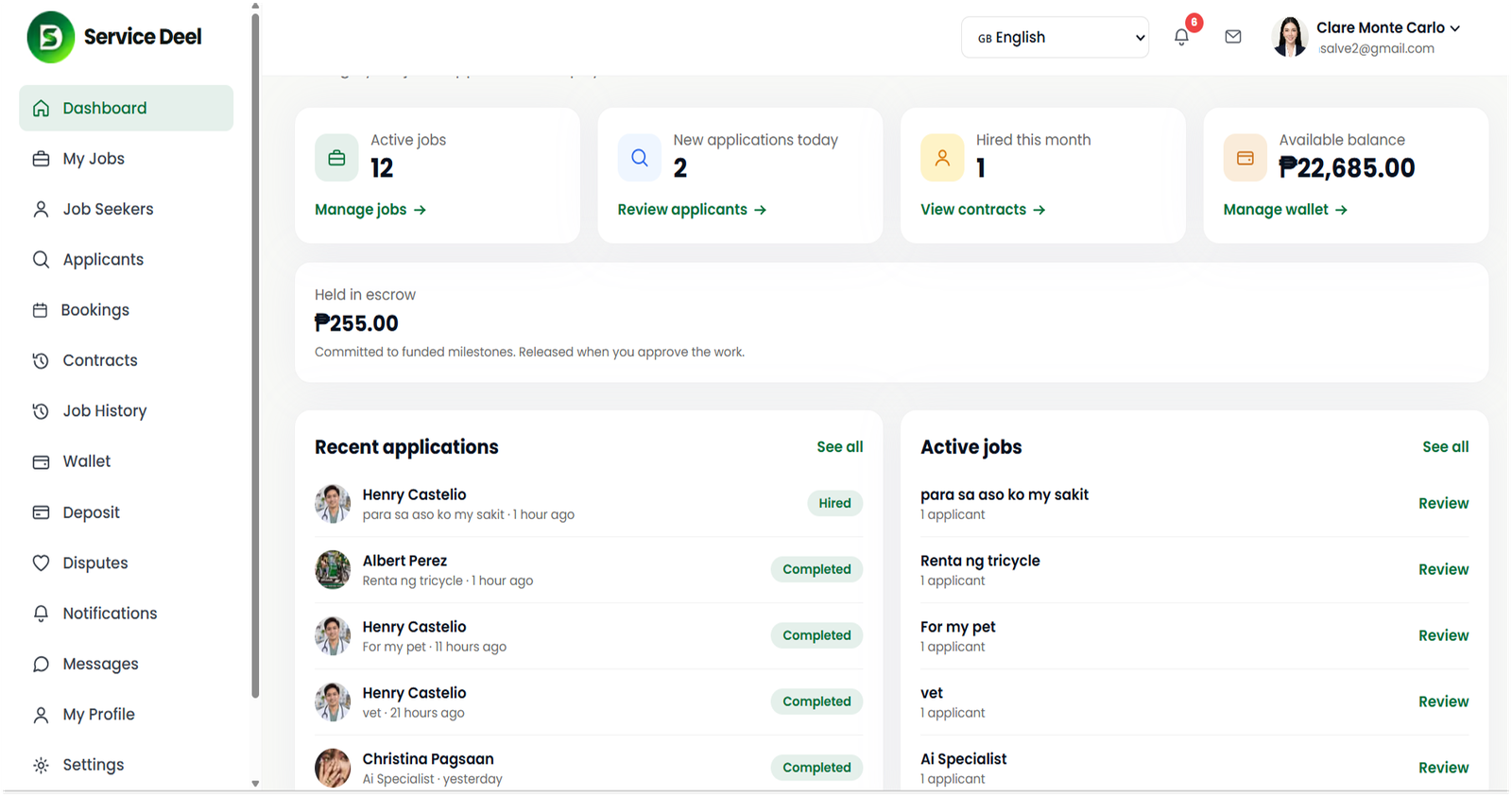
1. How to Post a Job?
From your Dashboard, go to My Job and click Post a Job.
2. How to Edit My Job Post?
From your Dashboard, go to My Job, click Manage or View Applicants, and edit your job post.
Note: You cannot edit job details once you have hired a Job Seeker. This is to protect both parties.
3. How to Manage My Job Post?
From your Dashboard, go to My Job and click Manage or View Applicants for the job you want to manage.
4. How to Hire a Job Seeker?
Go to the Job Seeker page, open the Job Seeker's Profile, and click Send Offer or Hire Me.
Fill out the Send Offer form and click Send Offer. Wait for the Job Seeker to accept your offer.
5. How to Activate a Job Offer?
From your Dashboard, go to Contract and select the job marked NOT STARTED.
Click Add Milestone, fill in the required fields, click Add Milestone, and move the funds to Escrow.
6. How to Make a Booking?
From your Dashboard, go to Bookings → New Bookings, search for a Job Seeker, select the date and time, and pay through PayMongo.
We recommend messaging the Job Seeker first before making a booking.
Note: If no booking calendar appears on the Job Seeker's profile, it means the Job Seeker has not set up a booking calendar.
7. How to Book a Job or Service?
Go to the Job Seeker's Profile and click Book & Pay Now.
Select your preferred booking date, fill in the required booking information, and click Pay with PayMongo.
8. How to Check a Contract?
From your Dashboard, go to Contract and select the job you want to check.
9. How to Add Funds to My Wallet?
From your Dashboard, go to Wallet → Add Money.
Enter the amount, choose your payment option, and click Add Money. Follow the instructions and complete the required fields. Log in to your e-wallet or banks account to proceed the payments.
10. Why Do I Need to Move Funds into Escrow?
Escrow means holding the payment for the job or service you want to hire.
You need to move the funds to Escrow so the payment will also appear on the Job Seeker's Dashboard. Once the funds are in Escrow, the job can start.
This assures the Job Seeker that the payment has already been secured and that they only need to complete the agreed work or service.
11. How to Create Milestones?
From your Dashboard, go to Contract and select the Active Job where you want to add milestones.
12. How to Create Multiple Milestones?
From your Dashboard, go to Contract and select the Active Job where you want to add multiple milestones.
Click Add Milestone and enter half of the payment or any amount you prefer. Repeat the process until the total agreed payment is reached.
Note: You must set up all milestones in advance. Once the Job Seeker accepts the payment release, you cannot add another milestone.
13. How to Release a Payment or Milestone?
From your Dashboard, go to Contract and select the Active Job for which you want to release payment.
Click Release, type RELEASE to confirm, and click Release Payment.
14. How to Add a Job Seeker Review?
From your Dashboard, go to My Job → Manage → Applicants and click Write a Review.
15. How to Raise a Dispute?
From your Dashboard, click Dispute and select the Active Job.
16. How to Change My Password?
From your Dashboard, click Change Password.
Enter your current password and your new password.
17. How to Reset My Password?
For Desktop:
Go to the Service Deel homepage, click Login → Forgot Password, and enter the email address you used when signing up. Follow the instructions to reset your password.
For Mobile App:
Go to the Login / Register page, click Forgot Password, and enter your registered email address. Follow the instructions to reset your password.
18. How to Change Language?
From your Dashboard, go to Change Language and select your preferred language.
19. How to Delete My Account?
For Employers, account deletion is not available. However, you can request account deactivation by contacting customercare@servicedeel.com.
Once your account is deactivated, it will no longer appear on the website.
Important Reminder
For more information, we recommend reading the User Guides before hiring a Job Seeker or sending any payment.